
HITI Servo (Keyboard Control)
A HITI Servo can be used to move a servo continuously,at a fixed speed (Continuous Motion). This is particularly useful when you need to move your servo by pressing a Virtual Switch or a keyboard key.
To illustrate this, let’s use the LEFT and RIGHT keys of your keyboard to move a servo in the negative and positive direction respectively. Key assignment is done using the Keyboard Panel. We will also set virtual travel limits to limit the position range.
Sketch
In HITIPanel, open this project Example : 5_MotionControl \ 3_ServoKeyboardControl
We start our program by assigning several HITI Data to different control parameters to control and monitor the Servo from HITIPanel :
- Current position
- Continuous Speed control (setpoint, max, target, current)
- “MOVE -” and “MOVE +” virtual switches
- Virtualtravel limits
#include <HITIComm.h>
#include <HC_Servo.h>

// pins assignment
const int pin_Servo = 8;

// Analog Data assignment
const int ad_PosCurrent        = 0; // position (current)
const int ad_ConSpeSetpoint    = 1; // continuous speed (setpoint, max, target,current)
const int ad_ConSpeMax         = 2;
const int ad_ConSpeTarget      = 3;
const int ad_ConSpeCurrent     = 4;

// Digital Data assignment
const int dd_MoveNeg           = 0; // virtual switches
const int dd_MovePos           = 1;
const int dd_NegLimitIsReached = 2; // travel limits
const int dd_PosLimitIsReached = 3;

// continuous speed control
float conSpeSetpoint = 10.0; // °/s
float conSpeMax      = 100;  // °/s

// HITI Servo
HC_Servo servo;
During the setup(), we initialize the Servo (ID 0, pin 8, normal direction, position offset of +3.2°, initial position of 90°).
Next, we set the travel limits: anegative limit at 21° and a positive limit at 167.5°.
Finally, we end the setup() by displaying the initial values of our control parameters in HITIPanel.
void setup()
{
    // initialize library
    HC_begin();

    // initialize HITI Servo
    servo.init(
            0,           // ID = 0
            pin_Servo,   // attached to pin 8
            false,       // false => normal direction
            3.2,         // position offset = +3.2°
            90.0);       // initial position = 90°

    // set virtual travel limits -/+ (°)
    servo.travelLimits(21.0, 167.5);

    // display initial values of the control parameters in HITIPanel
    HC_analogDataWrite(ad_ConSpeSetpoint, conSpeSetpoint);
    HC_analogDataWrite(ad_ConSpeMax,      conSpeMax);
}
Inside the loop(), we start by retrieving the value of the speed setpoint set through HITIPanel and we apply it using continuousSpeed(). This parameter is the only one required to define a Continuous Motion.
Afterwards, we move the servo in the positive or negative direction using moveNegative() and movePositive() when the corresponding Virtual Switch is activated from HITIPanel.
Finally, we display the following data in HITIPanel:
- Continuous speed (Target, Current)
- Position (Current)
- Virtual travel limits (has the servo reached one of them?)
void loop()
{
    // communicate with HITIPanel
    HC_communicate();


    // set new control parameters --------------------------------------------

    // read from HITIPanel
    conSpeSetpoint = HC_analogDataRead(ad_ConSpeSetpoint); // speed
    conSpeMax      = HC_analogDataRead(ad_ConSpeMax);

    // set speed setpoint and max value
    servo.continuousSpeed(conSpeSetpoint);
    servo.maxSpeed(conSpeMax);


    // trigger motion --------------------------------------------------------

    // move -/+ on trigger (virtual switches)
    servo.moveNegative(HC_digitalDataRead(dd_MoveNeg));
    servo.movePositive(HC_digitalDataRead(dd_MovePos));


    // display data in HITIPanel ---------------------------------------------

    // control parameters
    HC_analogDataWrite(ad_PosCurrent,    servo.getCurrentPosition());       // position
    HC_analogDataWrite(ad_ConSpeTarget,  servo.getContinuousTargetSpeed()); // speed
    HC_analogDataWrite(ad_ConSpeCurrent, servo.getContinuousCurrentSpeed());

    // has the servo reached a travel limit?
    HC_digitalDataWrite(dd_NegLimitIsReached, servo.isNegLimitReached());
    HC_digitalDataWrite(dd_PosLimitIsReached, servo.isPosLimitReached());
}
Control Panels
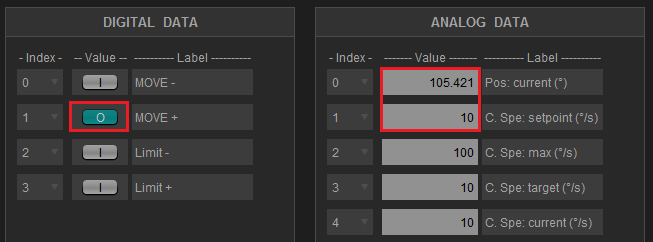
1) Display the DATA Control Panels.
2) Click on MOVE+ to start moving the servo in the positive direction at 10°/s. Click once again to stop it, else it will stop automatically when it reaches the positive limit at 167.5°.
Keyboard Control
1) Open the Keyboard Dialog box (CTRL+K or Tools\Keyboard).
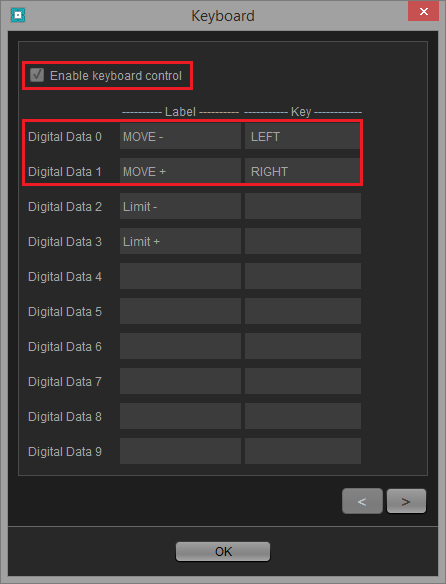
2) As you can see, the LEFT and RIGHT keys are already connected to Digital Data 0 and 1. It means that pressing/releasing LEFT or RIGHT will activate/deactivate Digital Data 0 or 1. Also, you can see that the keyboard control is enabled.
3) So, let’s try this. Click “OK” to close the Keyboard Dialog box and go back to the DATA Control Panels. Then press LEFT or RIGHT key to move your servo. Enjoy!